Bookings and online appointments

The time your client picks reaches your team with the details.

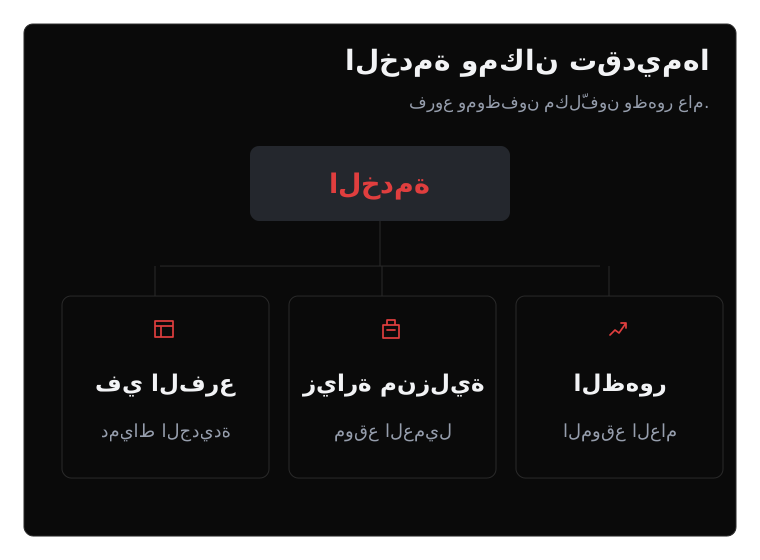
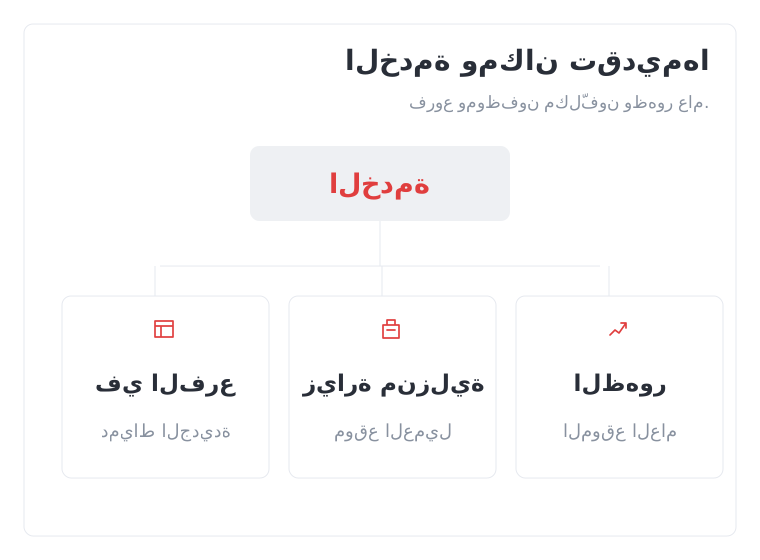
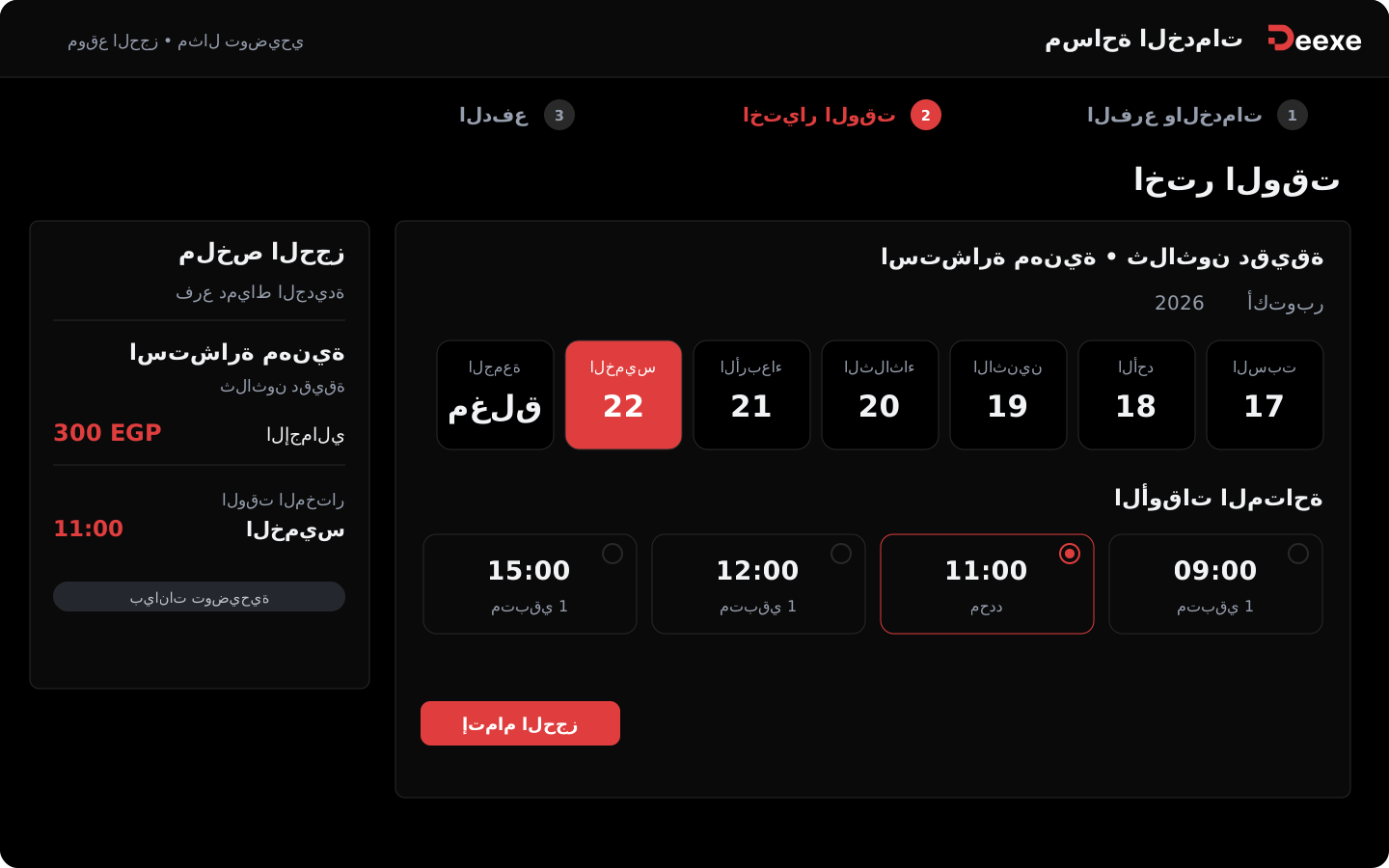
Show your services on a booking page, and let the client pick the branch, available time, and payment method. From the board, see who is coming, which service they booked, and what was paid or still due.

Free trial.
Start with one service and one branch.
A booking page with your name · Times by branch and capacity · Bookings and payments in one view · Mobile app to receive and confirm bookings and payments
Online booking

“When are you free?”
Leave the answer on the booking link.

The client sees the service, duration, and price, then picks a branch and an available time. They enter their details and finish booking on a page that carries your business identity.

Try it on your services

A client booking a service from a public booking page
Day-to-day operations

Before the client arrives,
your team already has the visit details.

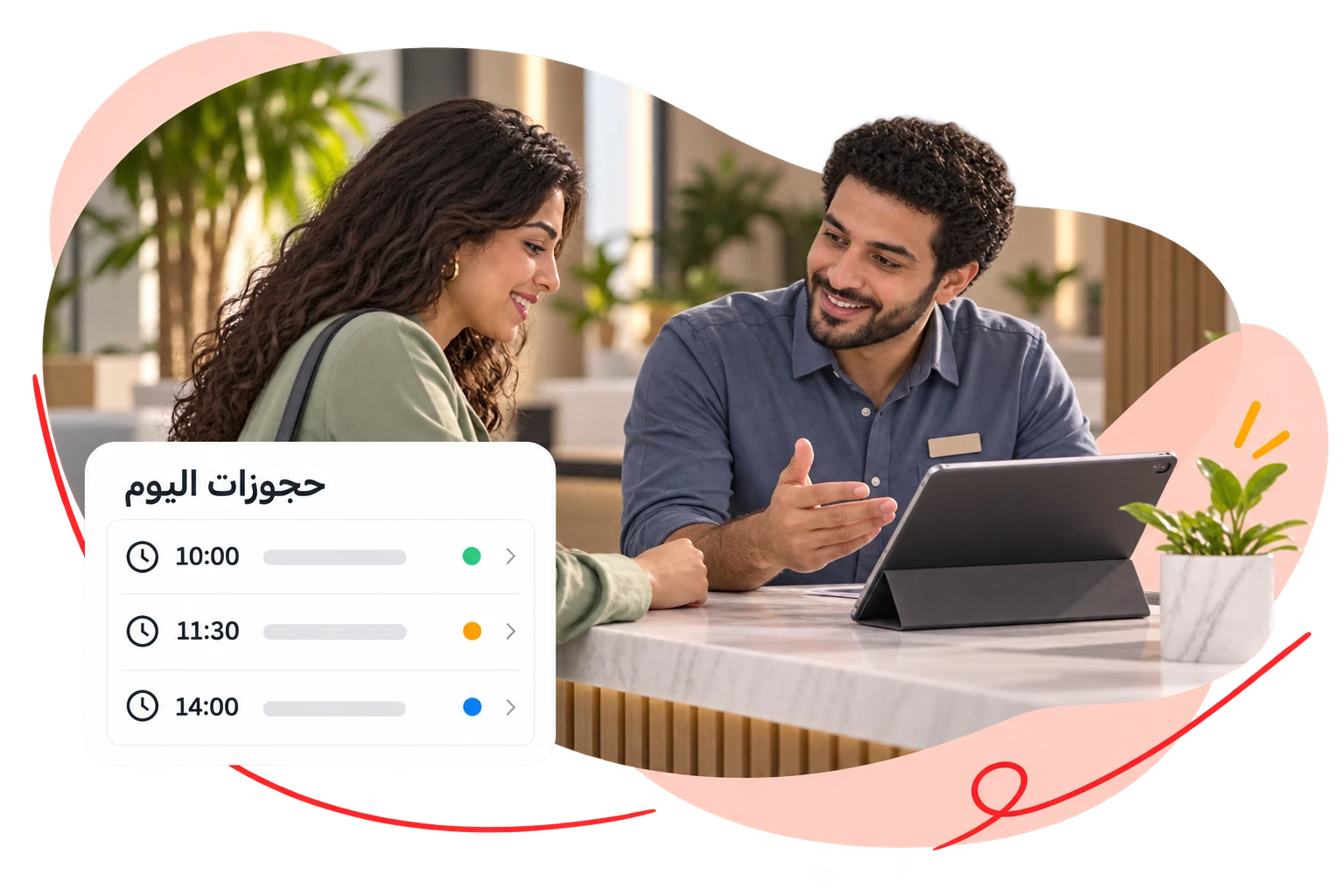
Open the bookings list or the calendar to see the client, service, branch, and time. Update the booking status as you go, and return to the details without collecting them again from chats.

Try it on your services
Reception reviewing today’s bookings before clients arrive
Bookings and payments

The booking is confirmed.
Has payment been completed?

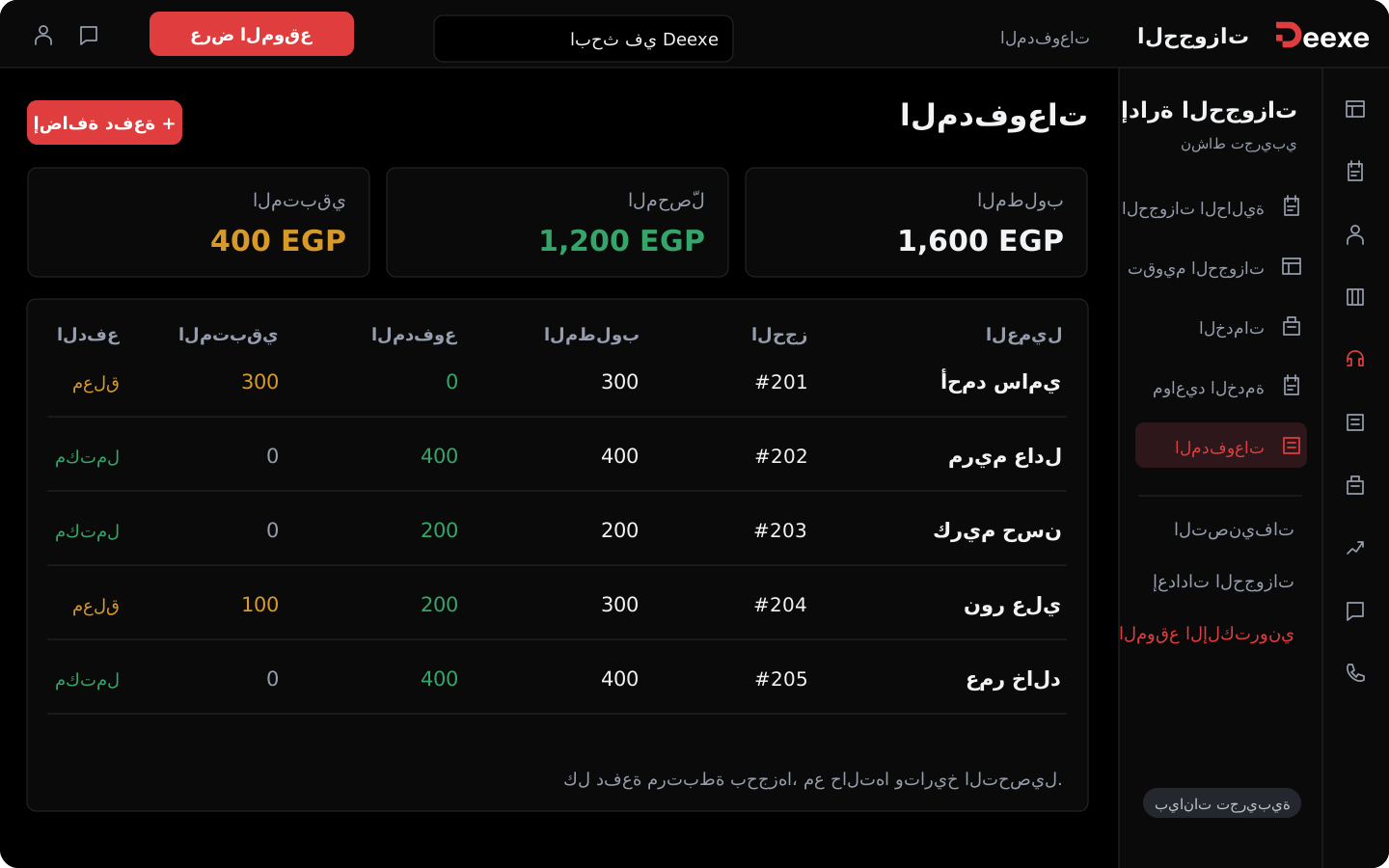
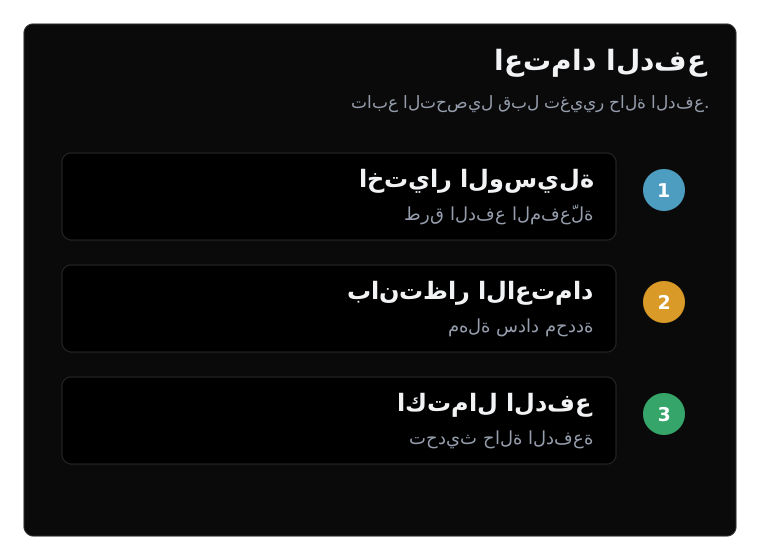
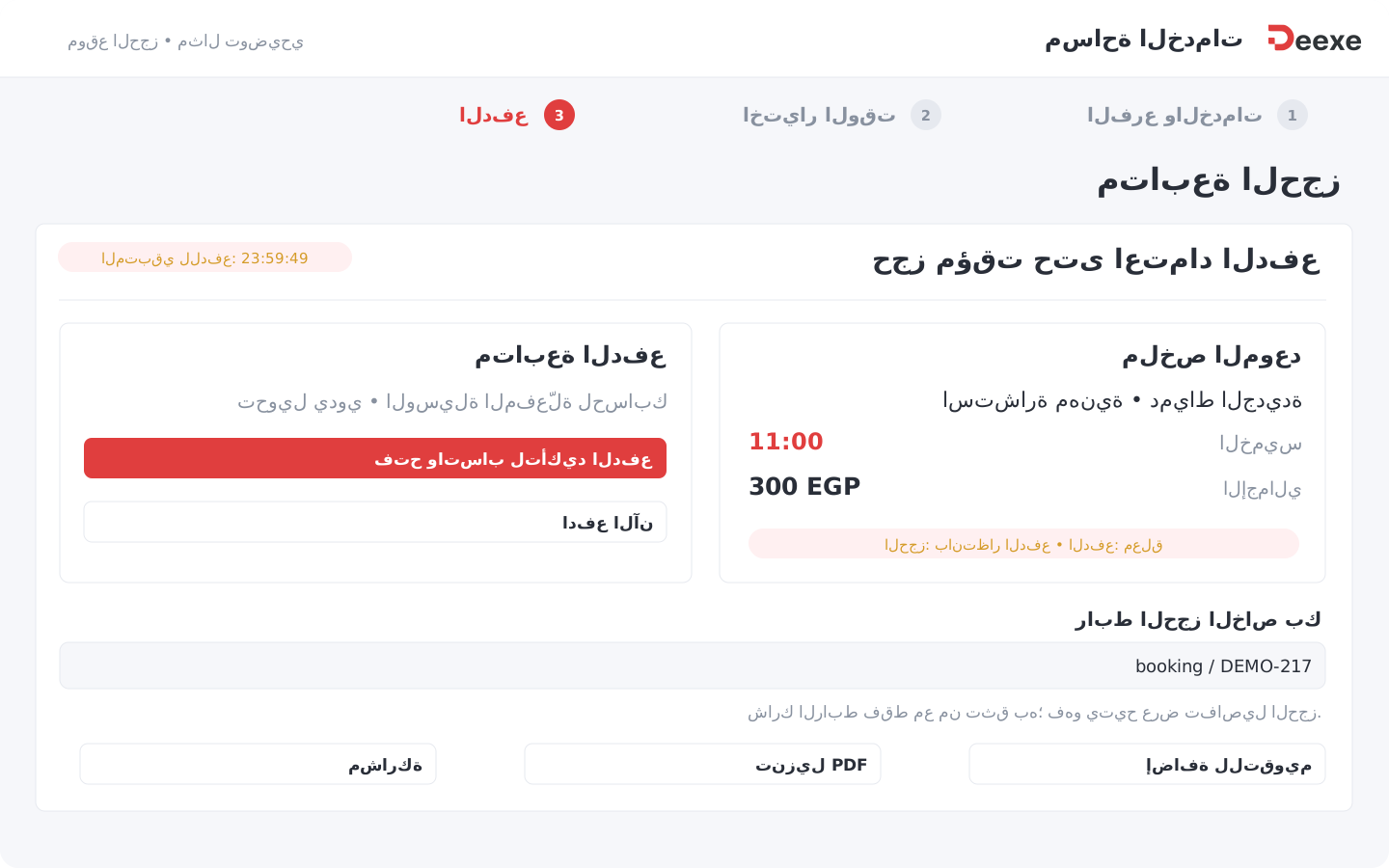
Follow booking status and payment status separately. Review the amount due, paid, and remaining, and link the payment to the booking. While a payment waits for review, the client still has the summary and the payment window on their follow-up page.

See payment follow-up
Booking payments with paid and remaining amounts Booking payments with paid and remaining amounts
Booking tools

Every step in the booking
has a tool that serves it.

From defining the service to the last payment, pick the way of working that fits your activity.

A page that takes bookings

Show your services and categories with your identity, and give the client a path to pick a branch, a time, and their details.

The service with its details

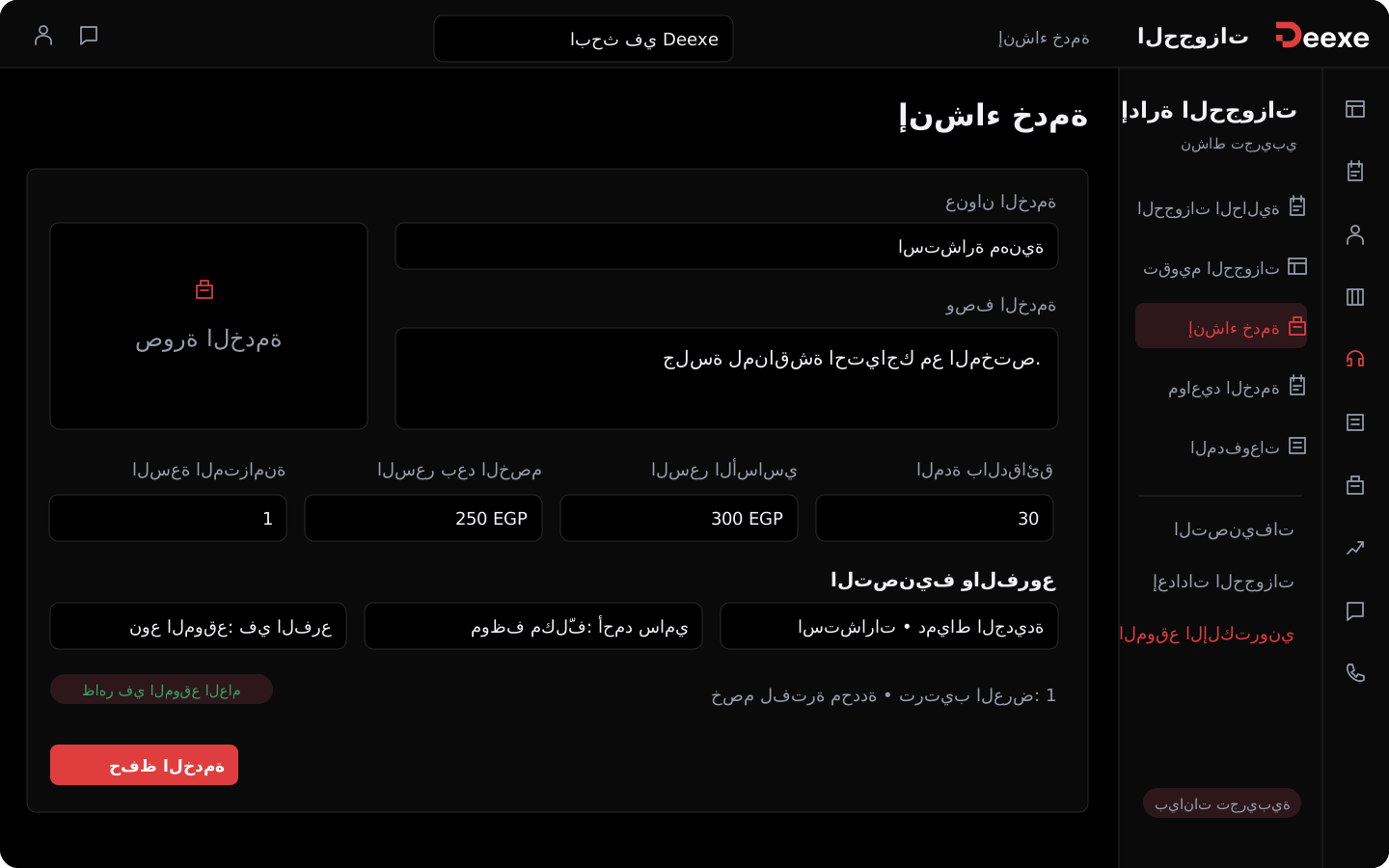
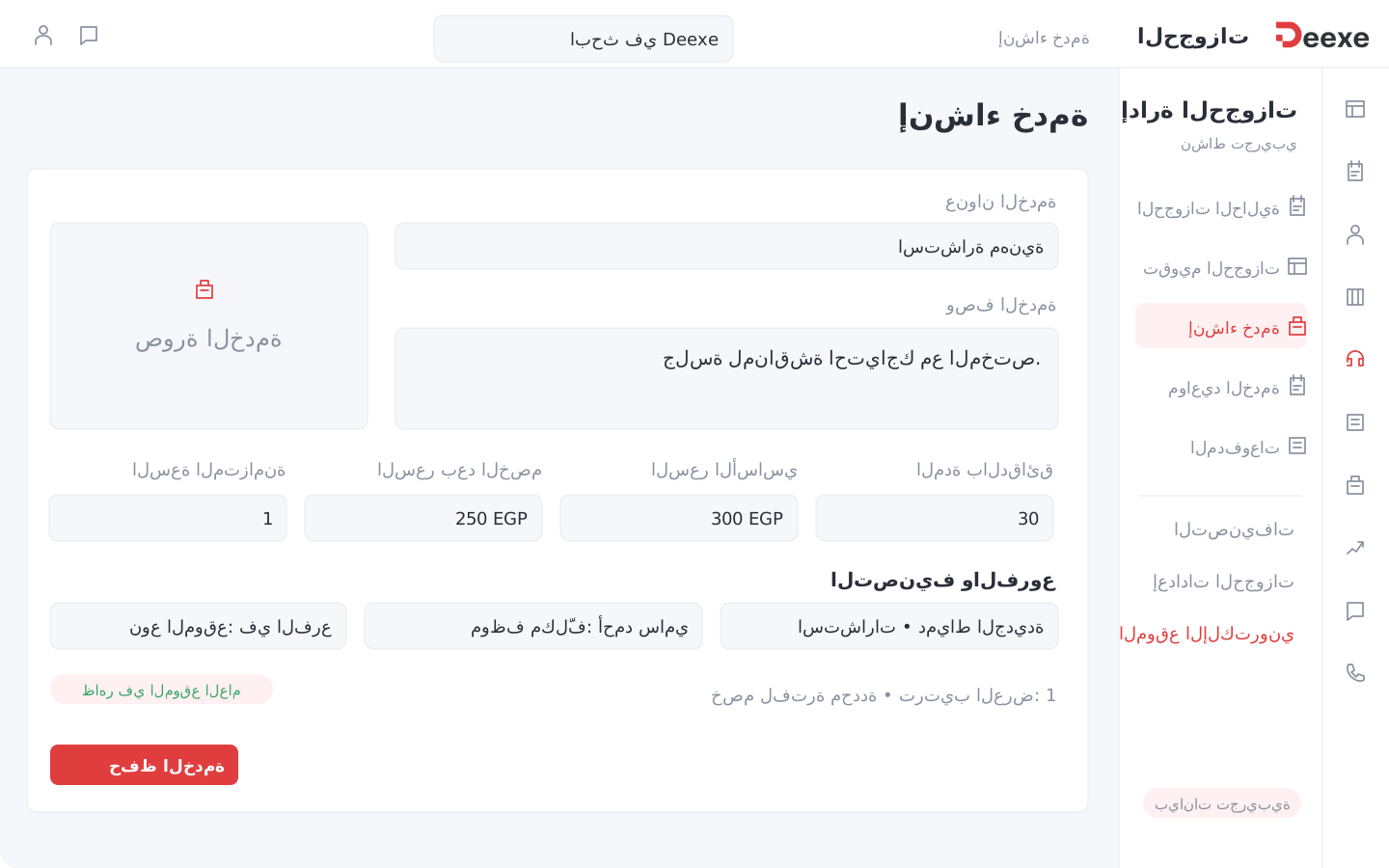
Add description, photo, duration, price, discount, and capacity, and choose whether the service appears on the public page.

Times you can tailor

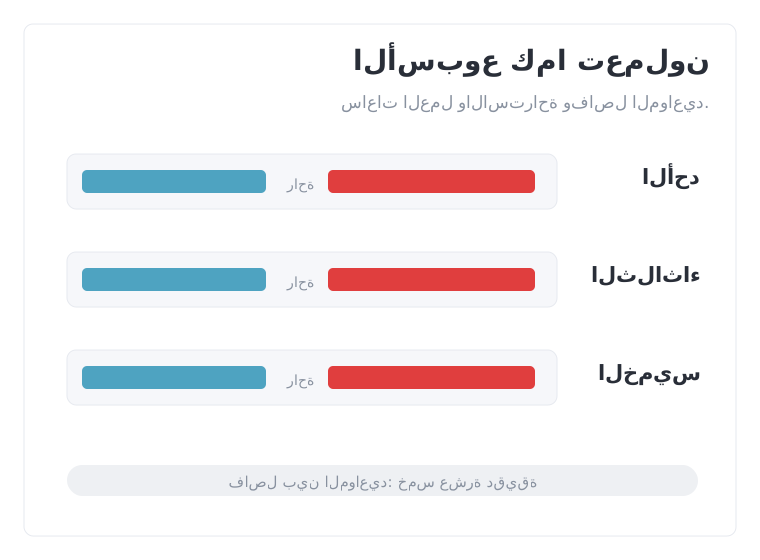
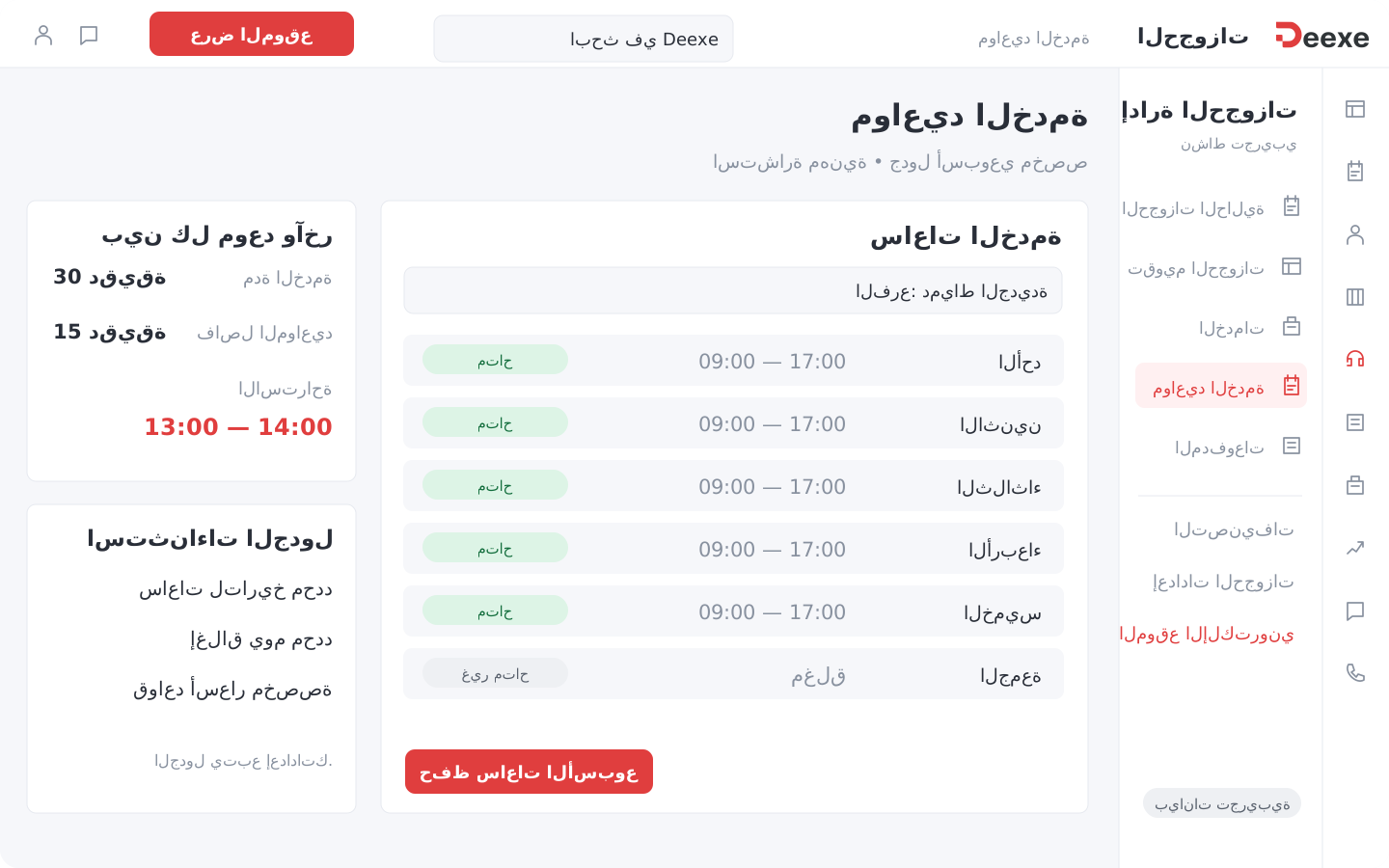
Use default branch hours or a schedule for the service, with breaks and gaps between appointments.

Branches and location types

Link the service to its branches and assigned staff when needed, and set the location type, including home visits.

Calendar and agenda

Read the work schedule by month, week, day, or agenda, and filter to reach the bookings you need.

Payment follow-up

Link payments to bookings and review payment status, collected amounts, and remaining amounts, with the payment methods enabled on your account.

Import bookings with AI

Start from the records you already have with AI booking import, then review the records after import.

How you take bookings

Before you publish the booking link,
set what the client will see.

Six operating choices that bring the times and prices closer to how you actually work.

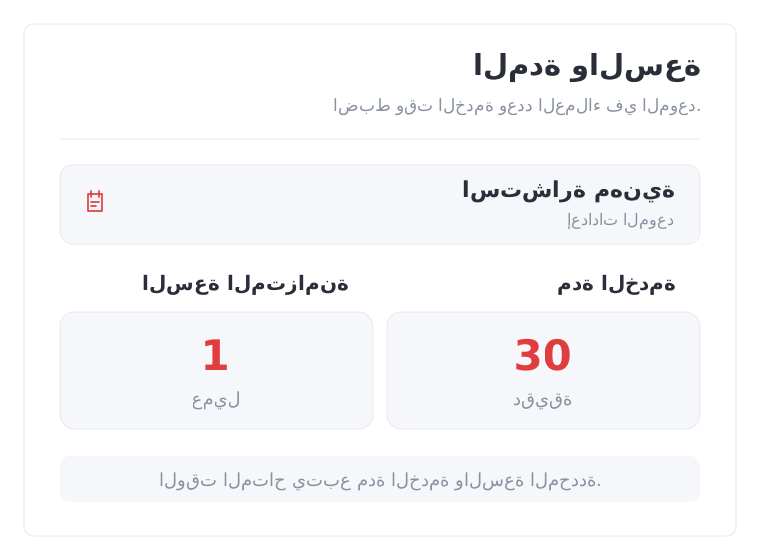
How long is the appointment?

Set the service duration and the maximum bookings at the same time, for a one-to-one session or a service that takes more than one client.

Service duration and capacity in Deexe Service duration and capacity in Deexe

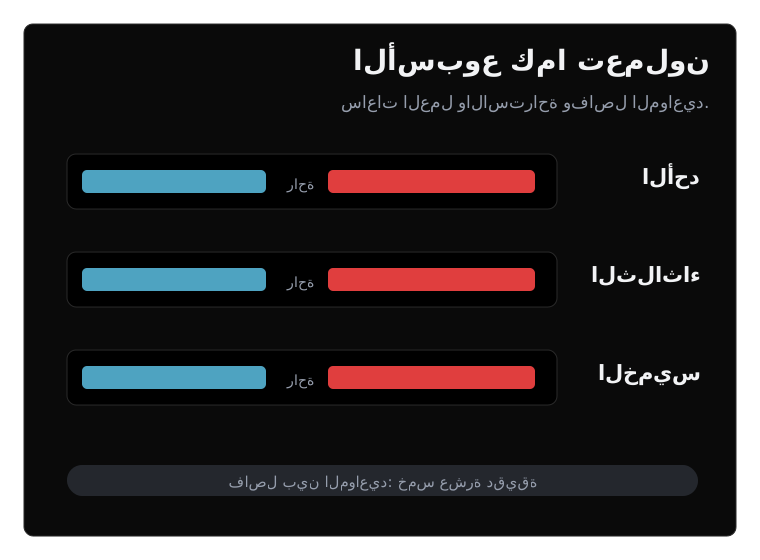
When is the service available?

Set working days and hours, breaks, and the gap between appointments — or use the default branch hours.

Service working hours in Deexe Service working hours in Deexe

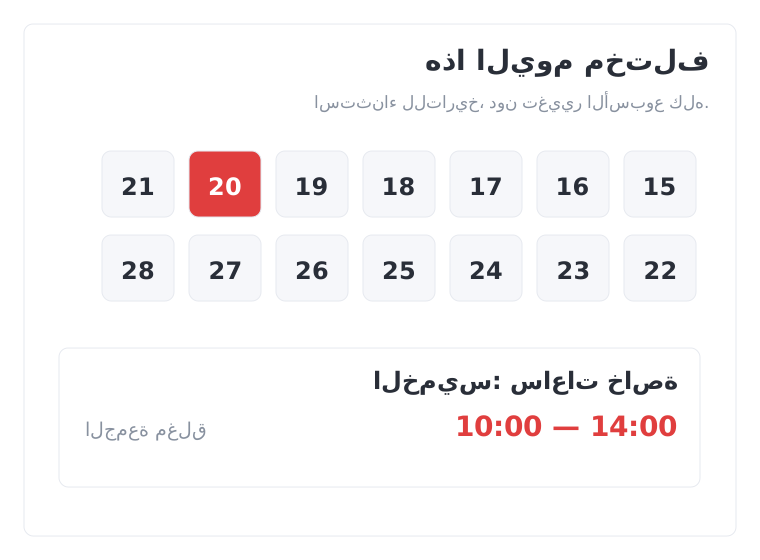
What about different days?

Add hours for a specific date, or close a day, without changing the usual weekly schedule.

Date exceptions and closed days in Deexe Date exceptions and closed days in Deexe

Which price will appear?

Set the base price and a discount with its period when needed, and use custom price rules for the service.

Service price and discount in Deexe Service price and discount in Deexe

Where is the service delivered?

Choose branches, location type, and optional assigned staff, and set whether the service appears on the public page.

Branches and location type in Deexe Branches and location type in Deexe

How is the booking confirmed?

Prepare the payment methods available to the client, and agree with your team how pending payments are reviewed, approved, and followed until the due window closes.

Booking payment rules in Deexe Booking payment rules in Deexe

Details that repeat every day.
Do not start them from scratch.

Services, times, and payments you can return to during work.

Preparing a new service for online booking

A new service?
Prepare it for booking.

Description, duration, price, and visibility, before the client sees it.

Available times and capacity for a service

This time is available.
This is its capacity.

Show times based on the service schedule, branch, and booking limit.

Following a partial payment on a booking

Part of the amount was paid.
The remainder is known.

Return to the payments linked to the booking while you follow collection.

Setting a home-visit service location type

The service is at the client?
Set its location type.

Prepare home-visit services next to branch services.

Client booking summary link after checkout

After the booking is done,
the details stay with them.

A private link for the summary and status, a PDF download, and adding the time to the calendar.

Connected tools

Your work is wider
than one appointment.

You can add other Deexe tools based on your plan and setup, such as client management, billing, and the website store.

Each party needs different details

The client picks,
reception organizes, and management follows the work.

Example Samar Hassan
Services View all
6
Bookings Appointments
4
Booking services Catalog and availability

Bookings
Newest All statuses All branches Date range
Delete
Starts: Thu, 15 Oct 2026 4:30 PM Consultation Sara Ali Booking status: awaiting payment
250.00 #1024 Actions
Starts: Mon, 12 Oct 2026 11:00 AM Home visit Ahmad Nour Booking status: ended Payment: failed
400.00 #1018 Actions
Starts: Wed, 14 Oct 2026 2:00 PM Consultation Lina Mostafa Booking status: confirmed
180.00 #1012 Actions
Starts: Fri, 16 Oct 2026 10:00 AM Follow-up Omar Fathi Booking status: confirmed
320.00 #1008 Actions
Starts: Sat, 17 Oct 2026 1:00 PM Consultation Nour Adel Booking status: awaiting payment
150.00 #1004 Actions
Starts: Sun, 18 Oct 2026 9:30 AM Home visit Hani Samir Booking status: confirmed
500.00 #998 Actions
Booking #1024
PDF Download Share Add to calendar
Confirm Edit Cancel
Client nameSara Ali
Booking status Awaiting payment
StartsThu, 15 Oct 2026 4:30 PM
EndsThu, 15 Oct 2026 5:00 PM
ServiceConsultation
Amount250.00
PaymentPending
Booking services

Listed Newest Visibility
Consultation 30 min · 250.00
Visible to everyone Listed
Hours Edit Delete
Home visit 45 min · 400.00
Visible to everyone Listed
Follow-up 20 min · 150.00
Visible to everyone Listed
Session 60 min · 500.00
Visible to everyone Listed
Hours: Consultation
Tuesday
Starts 09:00 Ends 17:00
Gap between appointments (min) 0
Wednesday
Thursday
Starts 09:00 Ends 17:00
Gap between appointments (min) 0
Friday
Saturday
Example Samar Hassan
Today
October
Sat Sun Mon Tue Wed Thu Fri
3 Sara Ahmad
4 Lina
5 Sara
6 Omar Ahmad
7 Lina
8 Sara Hani 1+
9 Nour
10 Ahmad 2+
11 Lina
12 Ahmad
13 Omar
14 Lina
15 Sara Ahmad 1+
16 Omar
17 Nour Lina 1+
18 Hani
19 Sara
20 Ahmad Lina
21 Omar
22 Hani
23 Nour
24 Lina 1+
25 Sara
26 Ahmad
27 Omar Hani
28 Lina
29 Nour
30 Sara
31 Ahmad
1 Omar
2 Lina
3
4
5 Hani
6
November

Bookings from the home screen.

Open appointments and booking services from one home screen — the same tools as the web, in your pocket.

  1. Bookings
  2. Details
  3. Services
  4. Hours
  5. Calendar

Reception

Follows bookings, services, branches, and times, and updates the status as the visit is done.

Business management

Reviews capacity, prices, and booking payments, and prepares the operating rules.

The client

Books on the page and returns to their booking link to review the details and status.

Getting started

Start with a trial booking
that goes through the full journey.

Creating a bookable service Creating a bookable service

Prepare the first service
the client will book.

Service availability hours Service availability hours

Test the available time
on the week and exceptions.

Booking details after checkout Booking details after checkout

Complete booking and payment
as the client and the team will see them.

Booking or memberships?

What is the difference between memberships and bookings?

Booking is the appointment system. Memberships are the member file, packages, attendance, and collection. Accounting keeps the books. Use one, or both, then review the money in accounting.

Comparison of the bookings system and the memberships system
What we compare BookingsAppointment system MembershipsSubscriptions and member accounts
What the system manages A service at a chosen date and time, with duration and capacity. A member file with a card, package, status, and one or more subscriptions.
What is in the client or member profile Name, phone, and email on the booking. When linked: bookings, payments, invoices, and notes on the client file. Overview, details, contact, and address, club attendance, total subscriptions, net collected, remaining, and contracts.
The activity it fits Clinics, salons, studios, and services sold by the visit. Clubs, academies, gyms, and individual or family memberships.
The main record in daily work The booking itself: client, service, and time. The member file and the subscription contract.
How the client or member arrives The client picks a branch and an available slot on a booking page. The member arrives and is identified by code, barcode, or QR.
Payment and collection Pay per booking. Follow paid and remaining on that appointment. Contracts, installments, net collected, remaining, and deferred revenue.
Running the visit or attendance The calendar shows who is coming and which service. Reception records attendance by scan or search, for the club or an activity.
After the visit or the period The next visit is a new booking. Renewal follows your rules, then you review drafts before they become a new commitment.
What management gets Fill the day without asking again which times are free. Know who is a member, what they subscribed to, what they paid, and who attended.
Open the system page Bookings system Memberships system
Deexe

Try booking
the way your client books.

Pick a service from your work, set a time and a price, then test the journey from the public page to the payments record.

Plans start from EGP 936 / month

Choosing a time on the public booking page Choosing a time on the public booking page

Get in touch

Reach us on email, phone, or WhatsApp.

مصر - دمياط الجديدة - شارع المحجوب - شركة Pintrue

Request a demo

Share your details and we will set up a demo with you.

Getting started

Start the free trial